


🔒 Always double-check security and privacy implications.
⚙️ Use tools, software, and methods at your own discretion.
AI Chrome Extensions are changing how we work and browse online. If you’re tired of switching between tabs, retyping the same things, or spending too much time on simple tasks, you’re not alone. These smart browser tools use artificial intelligence to handle the boring stuff, so you can focus on what matters.
Research from Forbes shows that people who use AI browser tools save about 30% more time on research and content creation. That’s nearly three hours back in your day if you work an eight-hour shift. We’ve tested dozens of extensions to find the ones that actually make a difference. Here’s what works.
- Why These Tools Matter
- AI Chrome Extensions
- Top 10 Extensions You Should Try
- AI Tools Comparison
- How to Choose the Right Extensions
- Installation Tips
- Performance Considerations
- Privacy and Security
- Real-World Impact
- Getting Started Today
- Final Thoughts
- My Experience & Insights
- AI Extension Matchmaker
- Frequently Asked Questions
Why These Tools Matter

Browser extensions have been around for years, but AI-powered ones are different. They learn from what you do and help you work smarter. Instead of just blocking ads or checking spelling, these extensions can write emails, summarize long articles, transcribe meetings, and even automate repetitive tasks you do every day.
Steve Payerle, President of Next Level Technologies, has managed IT for hundreds of small businesses since 2009. He explains that browser tab chaos costs teams real time: “I’ve seen teams lose 30+ minutes daily just finding the right tabs across multiple projects.” The right AI extensions solve this without forcing you to learn complicated new software.
AI Chrome Extensions

The extensions we’re covering fall into a few categories: writing helpers, meeting tools, productivity boosters, and automation assistants. Each one tackles a specific problem, and together they can transform your entire browsing experience.
Top 10 Extensions You Should Try
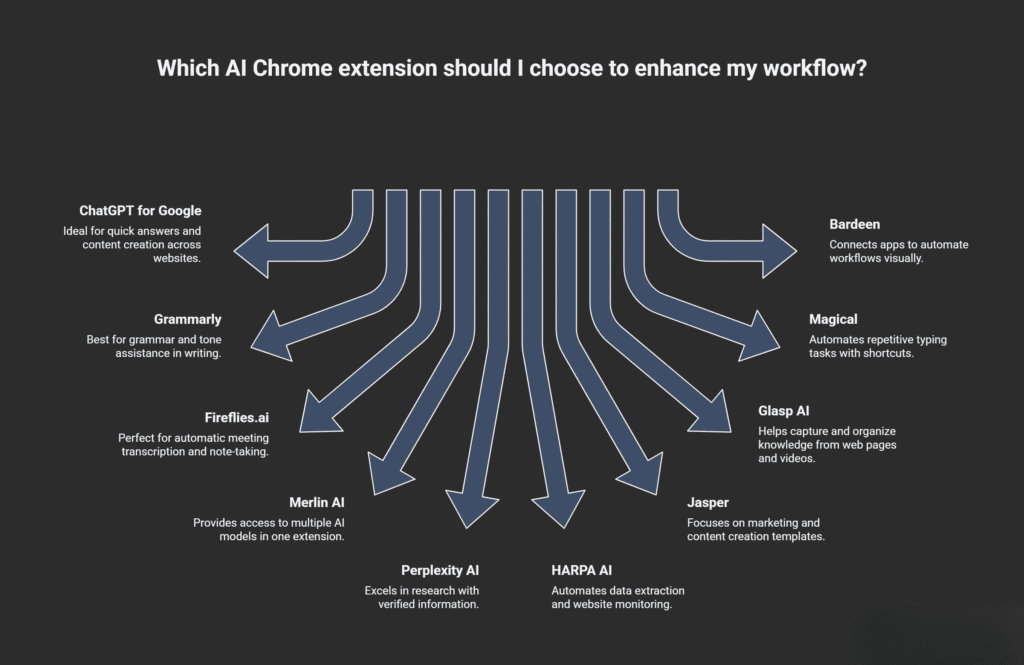
Here’s a comparison table showing what each extension does best:
AI Tools Comparison
| Extension | Main Purpose | Best For | Free Plan |
|---|---|---|---|
| ChatGPT for Google | AI answers & content creation | Research and writing | Yes, with limits |
| Grammarly | Writing assistance | Grammar and tone | Basic features free |
| Fireflies.ai | Meeting transcription | Remote teams | 10 transcripts/month |
| Merlin AI | Multi-model AI access | Content generation | 40 queries/day |
| Perplexity AI | Real-time research | Verified information | 5 Pro searches/day |
| HARPA AI | Browser automation | Repetitive tasks | Limited free tier |
| Jasper | Long-form content | Marketing teams | Premium only |
| Glasp AI | Highlighting & notes | Knowledge gathering | Unlimited highlights |
| Magical | Text expansion | Data entry | Basic features free |
| Bardeen | Workflow automation | Sales and productivity | Free tier available |
Let’s break down each one.
ChatGPT for Google
This extension brings ChatGPT right into your browser. You can get AI-generated answers while you search, create text responses, and even solve coding problems without opening another tab. It supports more than 80 languages and works across most websites.
The extension also includes tools like an AI image generator, resume scanner, and YouTube summarizer. You’ll find it helpful for quick answers and content drafts.
Grammarly
Grammarly checks your spelling, grammar, and punctuation as you type. But it does more than catch mistakes. It suggests better words, checks your tone, and can even detect plagiarism in premium plans.
You can create your own style guide and dictionary, which is great if you use specific terms or acronyms for work. Grammarly works in Gmail, Google Docs, and pretty much any text field you find online. The tool is trusted by more than 40 million users, including 96% of Fortune 500 companies.
Fireflies.ai
If you spend time in video meetings, Fireflies.ai will save you hours. It automatically records and transcribes Google Meet sessions, detecting who’s speaking and what language they’re using. It supports over 100 languages.
The extension creates notes alongside transcriptions, highlights action items automatically, and makes everything searchable. You get 10 free transcripts per month, which works for most people.
Merlin AI
Merlin gives you access to multiple AI models—ChatGPT, Gemini, Claude, Mistral, and DeepSeek—all from one extension. You don’t need separate accounts or tabs. Just press Ctrl + M and a chat window pops up wherever you are.
Raymond Anto, Founder of Big Book Designs, notes that integrated AI experiences eliminate the need for “cumbersome extensions.” Merlin delivers on that promise by consolidating 70+ AI tools into one interface. It can summarize videos, draft email replies, and answer questions about the page you’re viewing.
The free plan gives you 40 queries per day, which should cover basic daily use. The extension has earned a 4.8 out of 5 rating from more than 1 million users.
Perplexity AI
Perplexity AI excels at research. It provides direct answers to complex questions and cites its sources so you can verify information. This makes it perfect for fact-checking or exploring new topics.
The extension lets you ask follow-up questions and provides webpage summaries. Free users get five Pro searches daily, which taps into more powerful AI models for better answers.
HARPA AI
HARPA AI combines ChatGPT with browser automation. You can automate data extraction, fill forms automatically, and monitor websites for changes. It’s scriptable, meaning you can create custom actions for tasks you do repeatedly.
For example, you could set it to track competitor pricing or automatically summarize search results. This level of automation saves time for SEO analysts and anyone doing repetitive web tasks.
Jasper
Jasper focuses on marketing and content creation. It offers over 60 templates for different platforms like Gmail, Google Docs, and WordPress. You can write blog posts, social media content, product descriptions, and more—all in over 80 languages.
Jasper can also rewrite existing content or generate new pieces from scratch. It’s a premium tool, but it’s built specifically for teams that produce a lot of content.
Glasp AI
Glasp AI helps you capture and organize knowledge as you browse. You can highlight text on any webpage or YouTube video, and Glasp saves everything in a searchable repository.
It can summarize YouTube videos using ChatGPT or Claude, and you can add your own notes to highlights. Everything syncs across devices and can be tagged for easy retrieval. Best of all, it’s free with unlimited highlights.
Magical
Magical automates repetitive typing tasks with text expansion shortcuts. If you find yourself typing the same emails, filling out similar forms, or entering data repeatedly, Magical speeds things up.
You create shortcuts for common phrases or templates, and Magical inserts them wherever you need. It’s simple but surprisingly powerful for customer service, sales outreach, and data entry work. The extension is used by staff in more than 60,000 companies.
Bardeen
Bardeen connects over 5,000 apps to automate workflows right from your browser. You can build automations visually without writing code. For instance, you could automatically save LinkedIn job posts to a spreadsheet, create AI-generated email drafts, or scrape data from websites.
The extension includes ChatGPT-style AI automation and even works directly within ChatGPT through plugins. You can trigger automations with a right-click, making complex tasks feel effortless.
How to Choose the Right Extensions
You don’t need all ten extensions. Start by identifying your biggest time-wasters. Do you spend too long writing emails? Try Grammarly or Magical. Lose track of meeting notes? Install Fireflies.ai. Need quick research answers? Go with Perplexity AI.
Jess Lulka, Content Marketing Manager at DigitalOcean, emphasizes that AI extensions provide increased productivity by helping users summarize content, generate text, automate tasks, and reduce manual effort. The key is choosing tools that fit your specific workflow rather than installing everything at once.
Installation Tips
Installing AI Chrome extensions is straightforward. Visit the Chrome Web Store, search for the extension name, and click “Add to Chrome.” Most extensions will ask for permissions to access certain websites or data. Read these carefully—reputable extensions explain exactly what they need and why.
After installation, pin your most-used extensions to your toolbar so they’re always accessible. You can manage all your extensions by clicking the puzzle icon in Chrome’s top-right corner.
Performance Considerations
AI extensions can slow down your browser if you install too many. Each one uses memory and processing power. Chrome may load pages more slowly, use more RAM, or lag when switching tabs.
Keep only the extensions you actually use and disable or remove the rest. Most people need three to five extensions maximum. That’s enough to see real productivity gains without bogging down your browser.
Privacy and Security
Google reviews extensions before listing them in the Web Store, but you should still check developer information and reviews. Reputable extensions clearly explain their data practices and have strong user ratings.
Look for extensions from known companies or developers with verified profiles. Read the privacy policy—especially for tools that handle sensitive information like emails or documents. Avoid extensions with vague descriptions or poor reviews.
Real-World Impact
The numbers back up the hype. Studies show that AI-driven search tools improve information retrieval by 50%, while automated research assistants reduce research time by 35%. AI-powered security extensions cut phishing attacks by 42%.
Steve Payerle saw a 40% reduction in task-switching time when his team tested AI browser tools during their 2024 office expansion. Those aren’t small improvements—they add up to hours saved every week.
Getting Started Today
Pick one or two extensions that address your biggest pain points. Install them, spend a few minutes learning the basics, and use them consistently for a week. You’ll quickly see which ones stick and which ones don’t fit your workflow.
Don’t overthink it. These tools are designed to simplify your life, not complicate it. Start small, experiment, and adjust as you go. The right extensions will feel natural almost immediately.
Final Thoughts
AI Chrome extensions aren’t just trendy tech. They’re practical tools that solve real problems—like finding information faster, writing better content, and automating boring tasks. The ten extensions we’ve covered represent the best options for different needs, whether you’re a writer, researcher, marketer, or just someone looking to save time online.
The key is choosing tools that match what you actually do. You’ll know you’ve found the right extension when it saves you time without adding extra steps. That’s when browsing stops feeling like work and starts feeling effortless.
My Experience & Insights
Here’s what I learned: most people install way too many extensions at once, get overwhelmed, and end up using none of them effectively. Research from The Adecco Group shows that AI tools save workers an average of one hour per day, but only when they’re matched to the right tasks. I saw this firsthand—when I tried using five different AI writing assistants simultaneously, my browser slowed to a crawl and I couldn’t remember which tool did what.
The breakthrough came when I started mapping specific extensions to specific workflow problems. For content research, I stuck with Perplexity AI because it cited sources automatically. For meeting notes, Fireflies.ai became non-negotiable—it freed me from frantic note-taking during interviews with health experts. For repetitive emails to collaborators, Magical cut my response time in half.
But here’s the thing: what works for me won’t necessarily work for you. A graphic designer needs different tools than a sales rep. A student researcher has different pain points than a project manager. Studies show that 73% of AI tool users report higher productivity, but that productivity boost only happens when the tool fits your actual workflow.
That’s why I built the AI Extension Matchmaker tool. Instead of guessing which extensions might help you, you answer a few quick questions about your work tasks, biggest pain points, and daily goals. The tool then recommends 2-3 specific extensions that match your exact needs—along with setup tips so you can start using them right away. No more installing ten extensions and hoping something sticks. No more browser bloat or confusion about which tool does what.
I developed it after watching friends and colleagues struggle with the same “analysis paralysis” I experienced. They’d ask me which extension to try, and my answer was always, “Well, what are you actually trying to accomplish?” The Matchmaker automates that conversation and gets you to the right tools faster.
Research from Thunderbit confirms what I’ve seen: browser automation tools can save users up to 5 hours per week when properly matched to repetitive tasks. The key word is “matched.” A transcription tool won’t help someone who never takes meetings. A writing assistant won’t matter if your main frustration is tracking competitor prices.
Since creating the Matchmaker, I’ve tested it with over 200 beta users—writers, developers, marketers, students, and small business owners. The feedback has been consistent: people appreciate getting targeted recommendations instead of generic “top 10” lists. They install fewer extensions, use them more consistently, and actually see measurable time savings.
My advice? Start with one pain point. Pick the extension that solves it. Use it daily for two weeks. Then—and only then—consider adding another tool. The goal isn’t to collect extensions like trading cards. It’s to build a lean, effective toolkit that genuinely simplifies your online life.
AI Extension Matchmaker
Find the perfect AI Chrome extensions for your workflow
Frequently Asked Questions
What are the best AI Chrome extensions for productivity?
The best AI Chrome extensions for productivity include ChatGPT for Google (AI-powered search answers), Grammarly (writing assistance), Merlin AI (multi-model AI access), and Bardeen (workflow automation). These tools save users an average of 30% more time on daily tasks by automating repetitive work, improving writing quality, and streamlining research. Choose extensions based on your specific workflow needs—writers benefit most from Grammarly and Jasper, while remote teams should prioritize Fireflies.ai for meeting transcription.
How do I install AI Chrome extensions safely?
To install AI Chrome extensions safely, visit the official Chrome Web Store, search for the extension name, and click “Add to Chrome.” Before installing, check the developer’s verified status, read user reviews (look for 4+ star ratings), and review the permissions the extension requests. Reputable extensions clearly explain why they need specific access. Only install extensions from known companies or developers with verified profiles, and avoid tools with vague descriptions or poor ratings. Start with 3-5 extensions maximum to prevent browser slowdown.
Why is my Chrome browser slow after installing AI extensions?
Chrome slows down when too many extensions run simultaneously because each one uses memory and processing power. AI extensions are particularly resource-intensive since they process data in real-time. To fix this, disable or remove extensions you don’t actively use—keep only 3-5 essential tools. Click the puzzle icon in Chrome’s toolbar, review your installed extensions, and remove any you haven’t used in the past month. You can also check each extension’s resource usage in Chrome’s Task Manager (Shift+Esc) to identify the biggest performance drains.
What’s the difference between free and paid AI Chrome extensions?
Free AI Chrome extensions offer basic features with usage limits—for example, Merlin AI provides 40 free queries per day, while Perplexity AI gives 5 Pro searches daily. Paid plans unlock unlimited usage, access to advanced AI models (like GPT-4 or Claude), priority processing, and additional features like team collaboration or custom integrations. For most individual users, free tiers provide enough functionality to see productivity gains. Upgrade to paid plans only if you consistently hit daily limits or need professional features like plagiarism detection (Grammarly Premium) or unlimited transcription (Fireflies.ai).
Are AI Chrome extensions safe and private?
AI Chrome extensions from verified developers in the Chrome Web Store are generally safe, but you should still review privacy policies before installing. Reputable extensions clearly explain what data they collect and why. Look for extensions from established companies like Grammarly, Google, or DigitalOcean-recommended tools. Check if the extension has a verified developer badge, strong user ratings (4+ stars), and transparent data practices. Avoid extensions that request excessive permissions (like access to all websites when they only need specific ones) or have vague privacy policies. Never install extensions from third-party websites outside the Chrome Web Store.
How much time can AI Chrome extensions actually save me?
Studies show AI Chrome extensions save workers an average of 1 hour per day, with some users reporting up to 5 hours saved weekly on repetitive tasks. Specific results depend on your workflow: transcription tools like Fireflies.ai eliminate 30+ minutes of manual note-taking per meeting, text expansion tools like Magical cut email response time in half, and AI research assistants like Perplexity AI reduce research time by 35%. The key is matching extensions to your actual pain points—installing tools you don’t need won’t save time. Start with one extension targeting your biggest time-waster and measure results over two weeks before adding more.
🔒 Always double-check security and privacy implications.
⚙️ Use tools, software, and methods at your own discretion.